How to restore contacts
How to restore currupted contacts data
Although EZ Contact Book is designed for minimal support, unexpected issues may occur.
Your database may become corrupted due to abnormal program termination, hardware issues, duplicate contacts, or other unforeseen reasons. If you're experiencing such problem, restoring your database is relatively easy: you can rename the original database file and restore from it, or from one of the auto-backup files.
Step 1: Locating the Database File
The program database is stored as a single file: contacts.db (it may be displayed as contacts without the .db extension in Windows)
It is located in: C:\Users\< your-user-name >\AppData\Roaming\E-Z Contact Book\
Tips
- Replace
< your-user-name with >part with your actual Windows username - Alternatively, you can access this folder by typing
%APPDATA%\E-Z Contact Book\in the File Explorer address box
Important:
- This folder is hidden by default, so you may not see it in Windows Explorer
- Windows hides known file extensions, so contacts.db file may be displayed as contacts
Make hidden files and folders visible
Adjust Windows File Explorer settings:
- Open File Explorer and click button next to View drop-down list
- Select Options. This will open Folder Options window
- In the View tab of the Folder Options window, adjust these settings as shown:
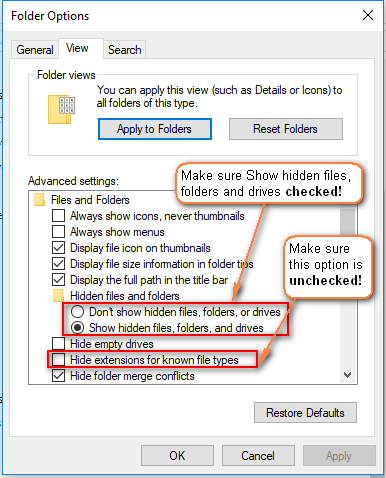
- Click Apply to Folders, confirm with Yes, then click OK
Now, you should be able to see and restore your database file.
Step 2: Rename the Database File
- Close EZ Contact Book before renaming the file (File > Exit). If the program is running, Windows may prevent you from renaming it
- Locate contacts.db and rename it (e.g., contacts_bak.db). Ensure the file still has the .db extension so the program can recognize it
Step 3: Restart EZ Contact Book
- Open EZ Contact Book
- When prompted to create default groups, skip this step. The program will automatically generate a new empty contacts.db database file
Step 4: Restore Your Contacts
In EZ Contact Book, restore your data from the file renamed in step 2:
- Use Database > Restore option, select renamed file
Follow the on-screen prompts and select the appropriate restore option.
If Restore Doesn't Work
If no contacts appear after restoring, the file may be an empty database auto-created during startup. Try restoring from an earlier auto-backup file:
-
Navigate to
%APPDATA%\E-Z Contact Book\Backup -
You'll find files like
CONTACTS_AUTO_BACKUP_XXXXXXXX.DBThe number part represents the backup date in YYYYMMDD format.
-
Start with the most recent backup, and :
- Check the file size:
- If it's larger than ~112 KB, it contains contacts
- A ~112 KB file is likely empty
Following these steps should help you restore your contacts successfully.